
OpenCode is a powerful AI coding assistant that supports multiple LLM providers. This guide shows you how to set up MiniMax-M2.1, a state-of-the-art coding model, as your OpenCode provider.
What You'll Get
By the end of this guide, you'll have:
- OpenCode installed and ready to use
- MiniMax-M2.1 configured as your coding assistant
- Full access to MiniMax's advanced polyglot programming and code refactoring capabilities
Prerequisites
- A MiniMax API key (get one at platform.minimax.io)
- Node.js 18+ or a Unix-like terminal (for curl installation)
Step 1: Install OpenCode
You have two installation options. Choose the one that works best for your setup.
Option A: Install via curl (Recommended)
curl -fsSL https://opencode.ai/install | bash
Option B: Install via npm
npm i -g opencode-aiImportant: Close and reopen your terminal (or start a new terminal session) to ensure the opencode command is available in your PATH.
After installation, verify that OpenCode is available by running:
opencode --versionStep 2: Authenticate with MiniMax
OpenCode provides an interactive authentication flow that makes provider setup simple.
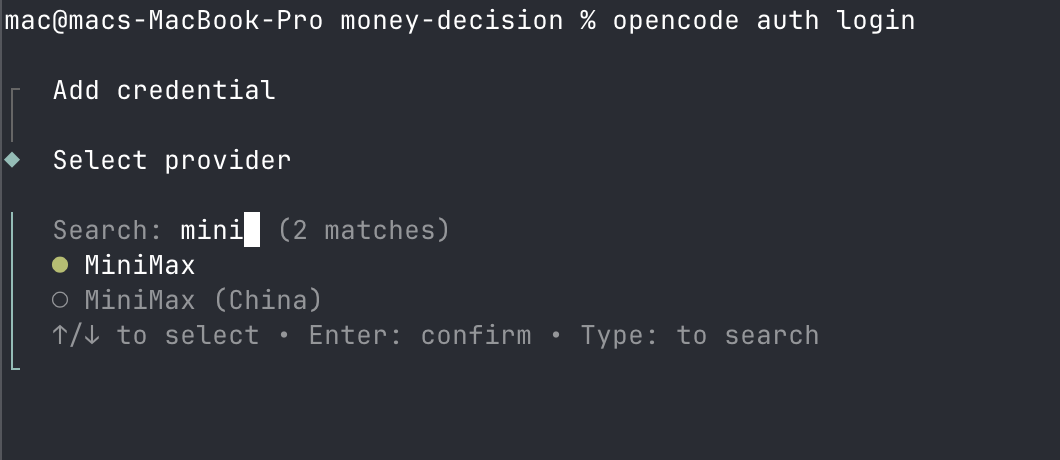
Run the authentication command:
opencode auth loginWhen prompted to select a provider:
- Search for and select MiniMax from the provider list
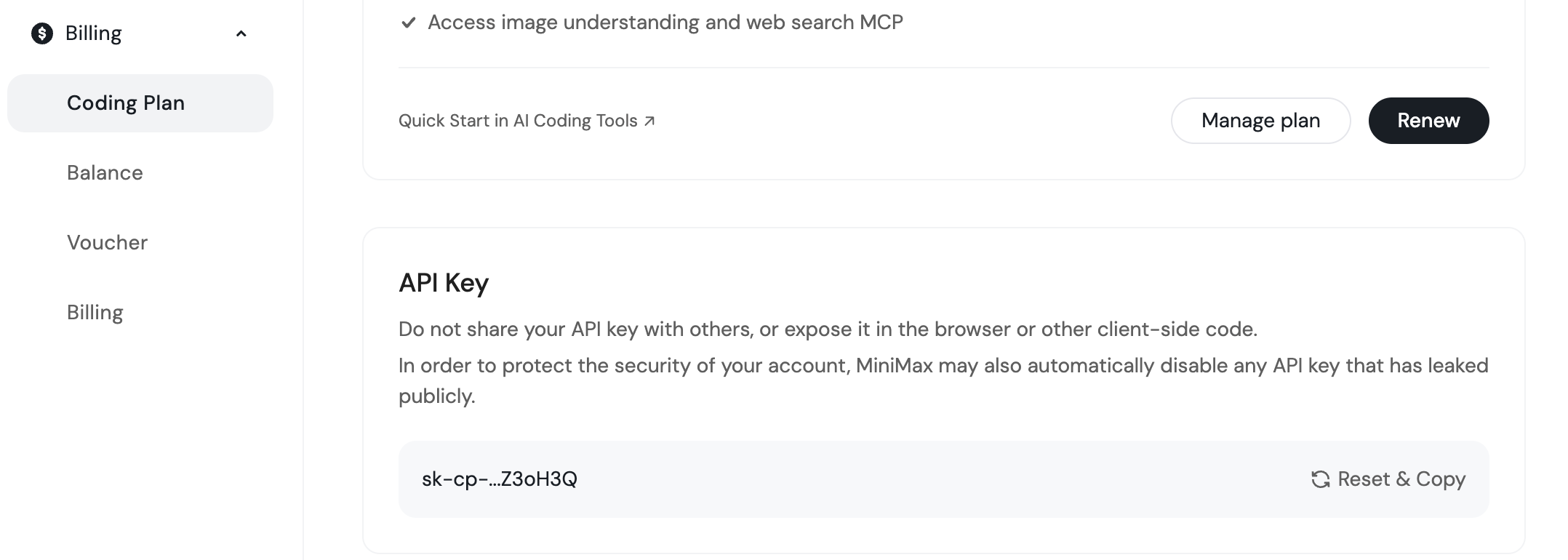
- Enter your MiniMax API key when prompted
Note: If you subscribed through the Coding Plan, you can find your API key at https://platform.minimax.io/user-center/payment/coding-plan
That's it! OpenCode will save your credentials securely.
Step 3: Select the MiniMax-M2.1 Model
Start OpenCode in your project directory:
cd /path/to/your/project
opencode
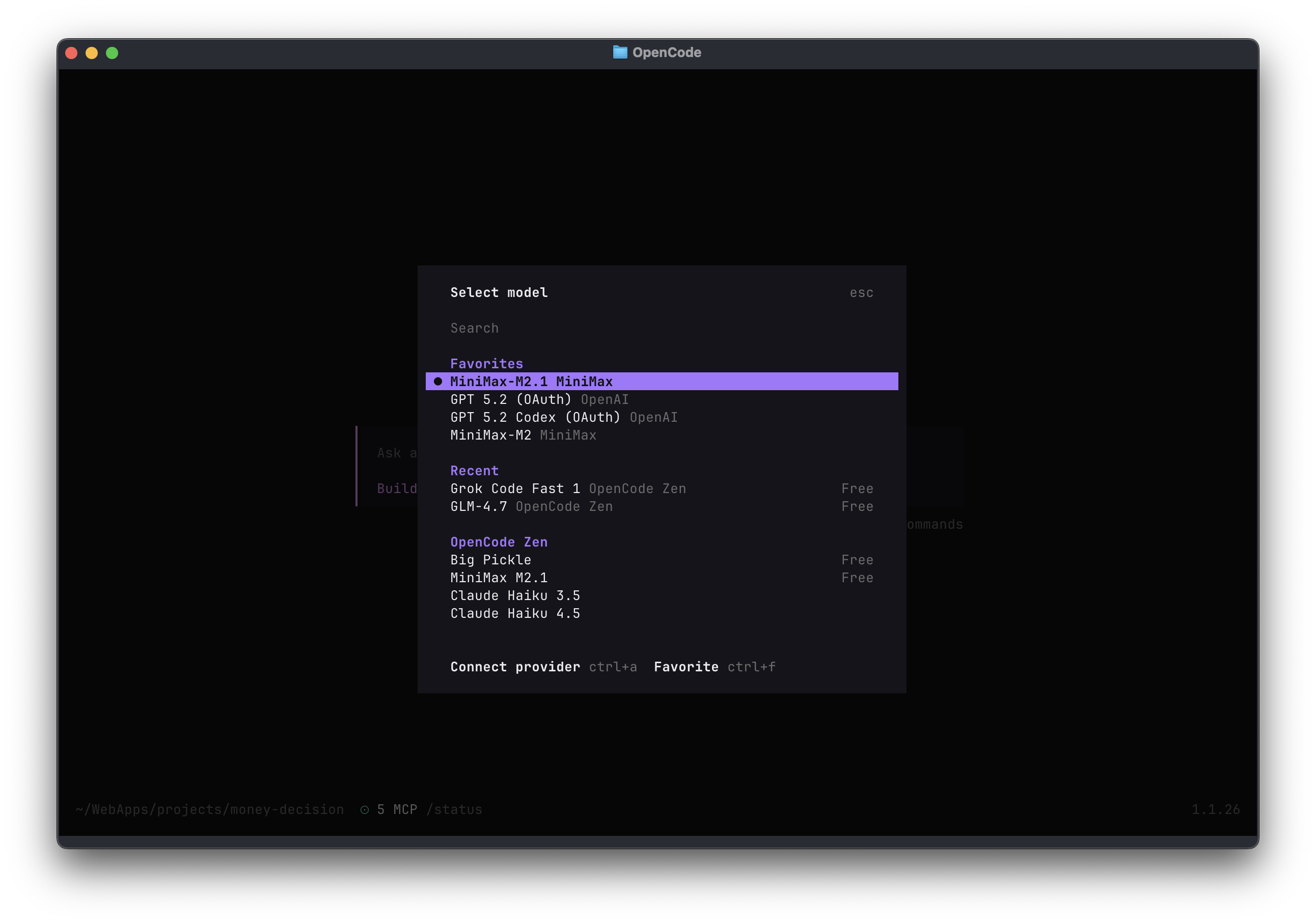
Once OpenCode is running, type /models to open the model selector.
Select MiniMax-M2.1 from the list of available models.
You're now ready to use MiniMax-M2.1 for AI-assisted coding!
Step 4: Set MiniMax-M2.1 as Default Model
To avoid selecting the model every time you start OpenCode, you can set MiniMax-M2.1 as your default model.
Edit the OpenCode configuration file at ~/.config/opencode/opencode.json and add the defaultModel field:
{
  "$schema": "https://opencode.ai/config.json",
  "defaultModel": "MiniMax-M2.1"
}
If the file doesn't exist, create it with the above content. If it already exists, just add the defaultModel line to your existing configuration.
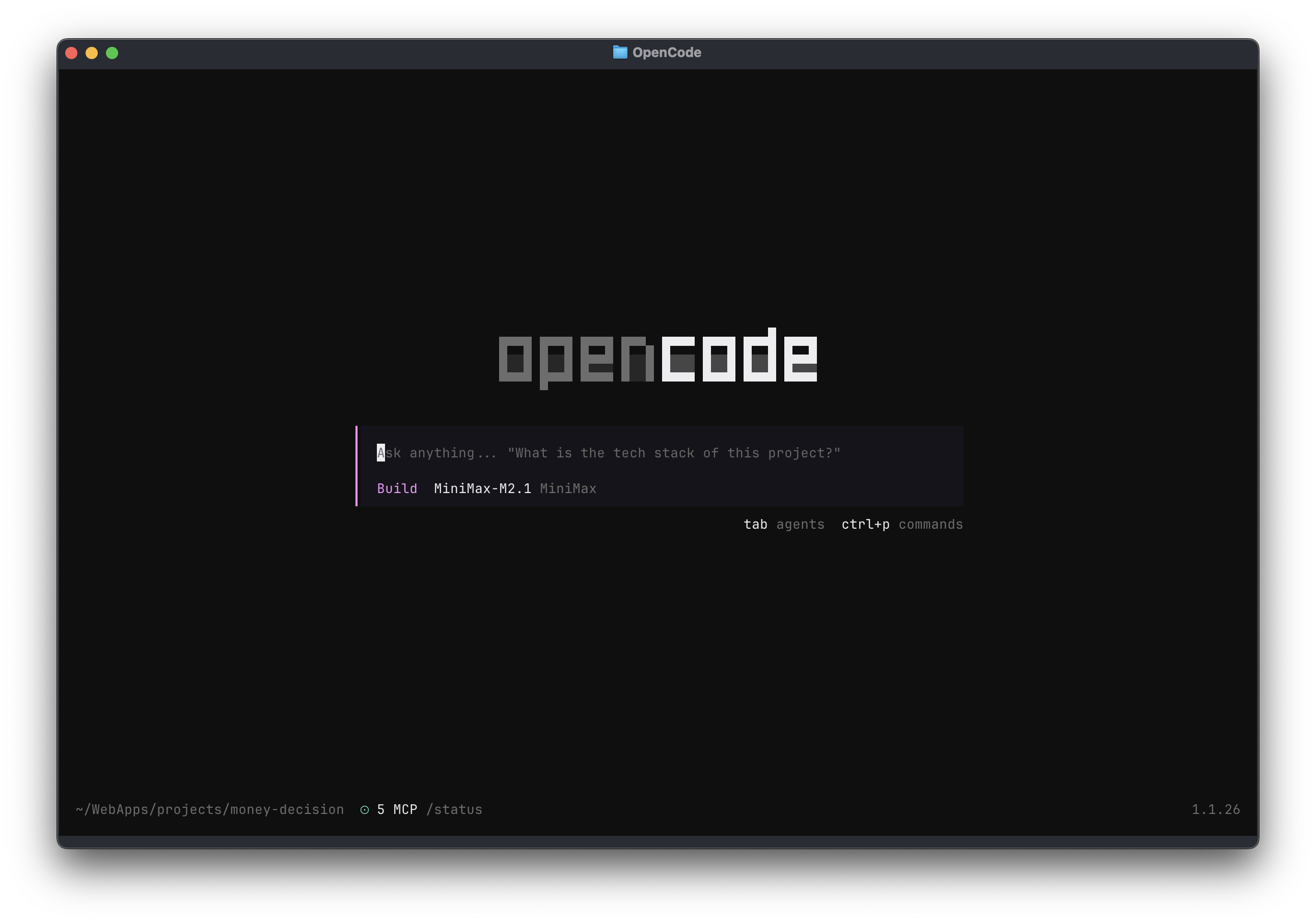
Now when you start OpenCode, it will automatically use MiniMax-M2.1 without requiring manual selection each time.
Verification Checklist
To confirm everything is working correctly:
-
opencode --versionshows the installed version -
opencode auth loginsuccessfully authenticated with MiniMax -
/modelscommand shows MiniMax-M2.1 in the model list - You can send a test prompt and receive a response from MiniMax-M2.1
Important: MiniMax Model Limitations
The MiniMax-M2.1 model you just configured is a text-only model. This means:
- No visual input: MiniMax-M2.1 cannot directly analyze images, screenshots, or diagrams
- No web search: MiniMax-M2.1 cannot search the web for up-to-date information or documentation
These are common requirements in modern coding workflows. To add these capabilities, you need to install the MiniMax MCP server, which provides two additional tools:
web_search: Search the web for documentation, examples, and solutionsunderstand_image: Analyze screenshots, UI mockups, architecture diagrams, and more
The MCP server works alongside MiniMax-M2.1, giving your AI assistant access to visual understanding and real-time web information.
Ready to extend your setup? Check out the companion guide: How to Add MiniMax MCP Tools to OpenCode
Next Steps
Now that you have MiniMax set up in OpenCode, you might want to:
- Add MiniMax MCP tools: Install the MiniMax MCP server to add
web_searchandunderstand_imagecapabilities (see the companion guide on setting up MiniMax MCP in OpenCode) - Explore MiniMax capabilities: Try complex refactoring tasks, multi-language code generation, or debugging with MiniMax-M2.1
- Customize your workflow: Check out the OpenCode documentation for advanced configuration options